
Provision SIP trunks, DIDs, and routing yourself in minutes. Get started today.

Boost your phone system with Microsoft Teams

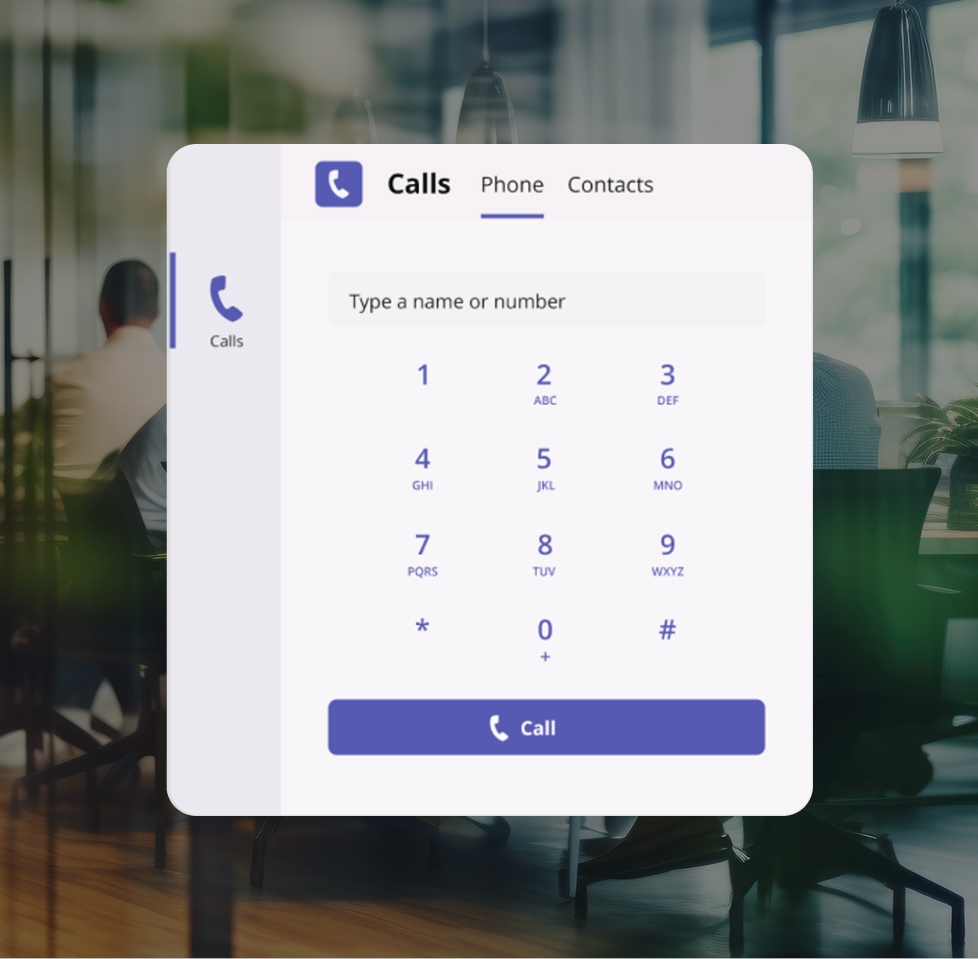
The Teams experience you know paired with inbound and outbound calling functionalities for a unified phone system that keeps your staff connected and customers satisfied.

call transcription use cases

What is the Microsoft Teams connector?

The Microsoft Teams integration allows you to use VoIP.ms as your calling provider within the Teams app. By connecting your VoIP.ms account, you can make and receive calls using your existing phone numbers, manage calls directly from the Teams dashboard, and extend your VoIP phone system to Teams users. The result is the perfect combination of collaboration tools with flexible VoIP call handling.

Microsoft teams interface syncing

Why connect VoIP.ms to Microsoft Teams

The perfect idea for effective project management: use our connector to extend your phone system into the Microsoft Teams app and keep workflows in place.

arrow-rotate-outline-18

Unified calling experience

Make and receive calls from MS Teams in real-time using your VoIP.ms numbers.

badge dollar outline

Cost control

Avoid per-user calling plans by using VoIP.ms usage-based pricing.

route-outline

Flexible call routing

Keep full control over routing, IVRs, and call flows outside of Teams.

pin-check-outline

Remote accessibility

Allow team members to take calls from anywhere using Teams.

bell-dot-outline

Call visibility

Track and manage call activity through your VoIP.ms account.

users-plus-outline

Scalable setup

Add users and numbers without changing your overall system.

Where our Microsoft Teams connector thrives

Streamline business communications by connecting your VoIP phone system with a user experience your team is familiar with.

How to set up the Microsoft Teams Connector

The step-by-step on how to connect VoIP.ms to MS Teams and start making calls.

Icon circle number 1

Prepare your account

Ensure your VoIP.ms and Microsoft accounts are ready for integration.

icon circle number 2

Configure Teams

Set up direct routing or your preferred connection method.

icon circle number 3

Assign users & numbers

Link users in Teams to your VoIP.ms numbers and routing setup.

icon-4-plain

Start calling in Teams

Make and receive calls using Teams with your VoIP.ms configuration.

Keep full control of your phone system

Powerful features to manage calling, routing, and performance across your Teams setup.

connect-outline

Global Network Infrastructure

Support reliable call handling with a distributed network designed for consistent performance and scalability. VoIP.ms provides access to multiple points of presence, allowing you to route calls efficiently and maintain call quality across regions.

You Might Also Like

Advanced features for a foolproof phone system.

forward teams calls

Call routing & forwarding

Control how calls are handled before they reach Microsoft Teams. Route calls to specific users, departments, or fallback destinations. Learn More

sms texting customer

SMS & Messaging

Send and receive text messages using your VoIP.ms numbers to support customer communication beyond voice. Learn More
What Our Customers Say

Microsoft Teams Integration FAQs

Discover Our 70+ Features

We offer a vast range of standard telephony features found in traditional phone systems such as call waiting, voicemail and caller ID, as well as enhanced communication features such as time condition, digital receptionist and calling queue that can help your business grow and manage your calls more effectively.

all features illustrations

Get Started with VoIP.ms

Create your account and start building your voice setup in minutes.
Skip to content